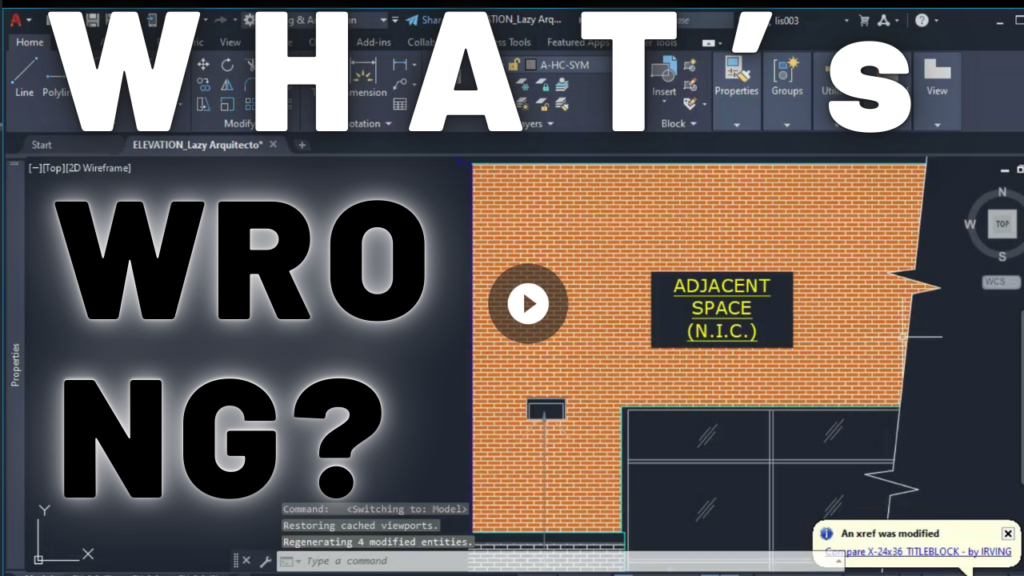
You open a site plan in AutoCAD, hit print preview, and everything looks new. The existing building, the existing curbs and the new store all print with the same dark line. The plan reviewer can’t tell what stays and what gets built.
In this article I show you two standard ways to separate existing from proposed items in AutoCAD, so your drawing reads clearly at permit time.
How to show existing items lighter with layer colors
The first method is the one most people already know. You control line weight through the color of the layer.
- Open your plot style table (the CTB file) and check how each color prints. In my CTB, color 8 prints very light and red prints very dark.
- Make a layer for the existing item, for example an existing light pole layer.
- Set that layer to color 8.
- Move the existing object onto that layer.
- Run PRE (print preview) to check the result.
Keep your new items on a dark color like red, and the existing ones print light.
The catch is discipline. Each item needs the right layer, and notes on the same layer print at the same weight. I don’t like that my existing notes can’t be lighter.
How to use object transparency to separate existing from proposed
The second method changes transparency instead of color.
- Select the existing building and open the Properties palette.
- Set Transparency to 50. The building looks faded right away.
- Print preview still shows no difference. You need the system variable PLOTTRANSPARENCYOVERRIDE.
- Set PLOTTRANSPARENCYOVERRIDE to 2, then run PRE again.
Now the existing building prints lighter than the proposed one. Press F1 inside AutoCAD if you want the full description of each value of that variable.
Some engineering firms like this because they get drawings from others and can override a few objects quickly. For my architecture work, I didn’t like overriding things one by one.
The fastest way: watch me do it
Both methods above work, but you fix items one at a time. On a real project that is slow, especially when somebody else drew the file ten years ago.
In the video I show you my personal method. It is a short custom tool I made myself. With it, I fix the whole site plan in a few clicks, and even the notes separate cleanly, which neither method above can do easily. My boss and coworkers asked how I got such a clean result.
Watch the full livestream below to see the tool, the one extra command that finishes the job, and the final print preview.
Watch the full livestream
I show every step live in this video: The Pro Way to Separate Existing vs. Proposed in AutoCAD. If it saved you some time, subscribe to Lazy Arquitecto on YouTube, and join me live every Sunday at 11 AM for a new LazyTask, where I answer your AutoCAD questions in real time.