You rotate a block in AutoCAD and the text rotates with it, so it ends up sideways or upside down. There is a clean way to keep attribute text horizontal while the block rotates, and it takes about 7 minutes to set up.
What you will learn
- Why block text rotates with the block, and how to stop it
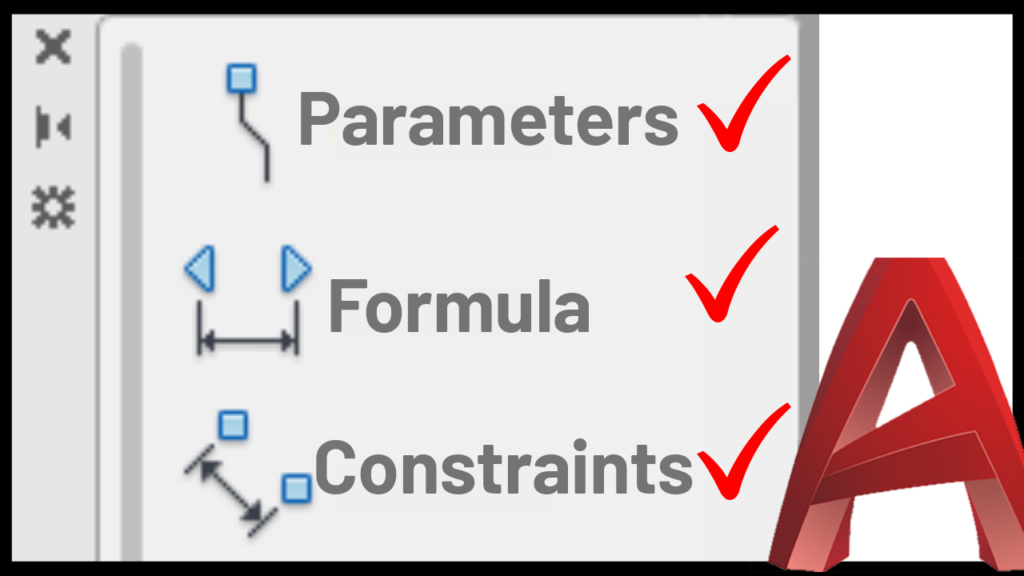
- The 3 pieces that keep the text horizontal: an attribute, a point parameter with a move action, and a rotation parameter with a rotate action
- The small settings people usually miss, so the text actually stays put
The idea in short
Instead of rotating everything together, you separate the text from the drawing. The text becomes an attribute, and you build the rotation so it only turns the geometry and leaves the attribute alone. The trick is in a couple of small property changes and one selection step, and they are easy to get wrong.
The example is an electrical receptacle, but the same technique works on any block that has text.
Watch the video for the exact steps
Every setting is shown on screen in the short video above, so you can pause and follow along in the Block Editor.
Quick tip: if your attribute seems to disappear after you save the block, run ATTSYNC and select the block to refresh it.
Next step
Want more AutoCAD shortcuts like this? Browse the free AutoCAD tutorials, get help with your own drawings in a 1 on 1 AutoCAD consultation, or get the files behind every video as a Patreon member.
Watch the full livestream
This trick was also covered in a longer livestream, Wasting Less Time in AutoCAD: