
CASE STUDY
The equipment schedule that builds itself.
A custom tool I built for a client: hundreds of pieces of kitchen equipment, one or two clicks.
The problem
A restaurant has a lot of equipment. Every fryer, sink, and refrigerator needs a row in the equipment schedule, with its model, plumbing, and electrical data.
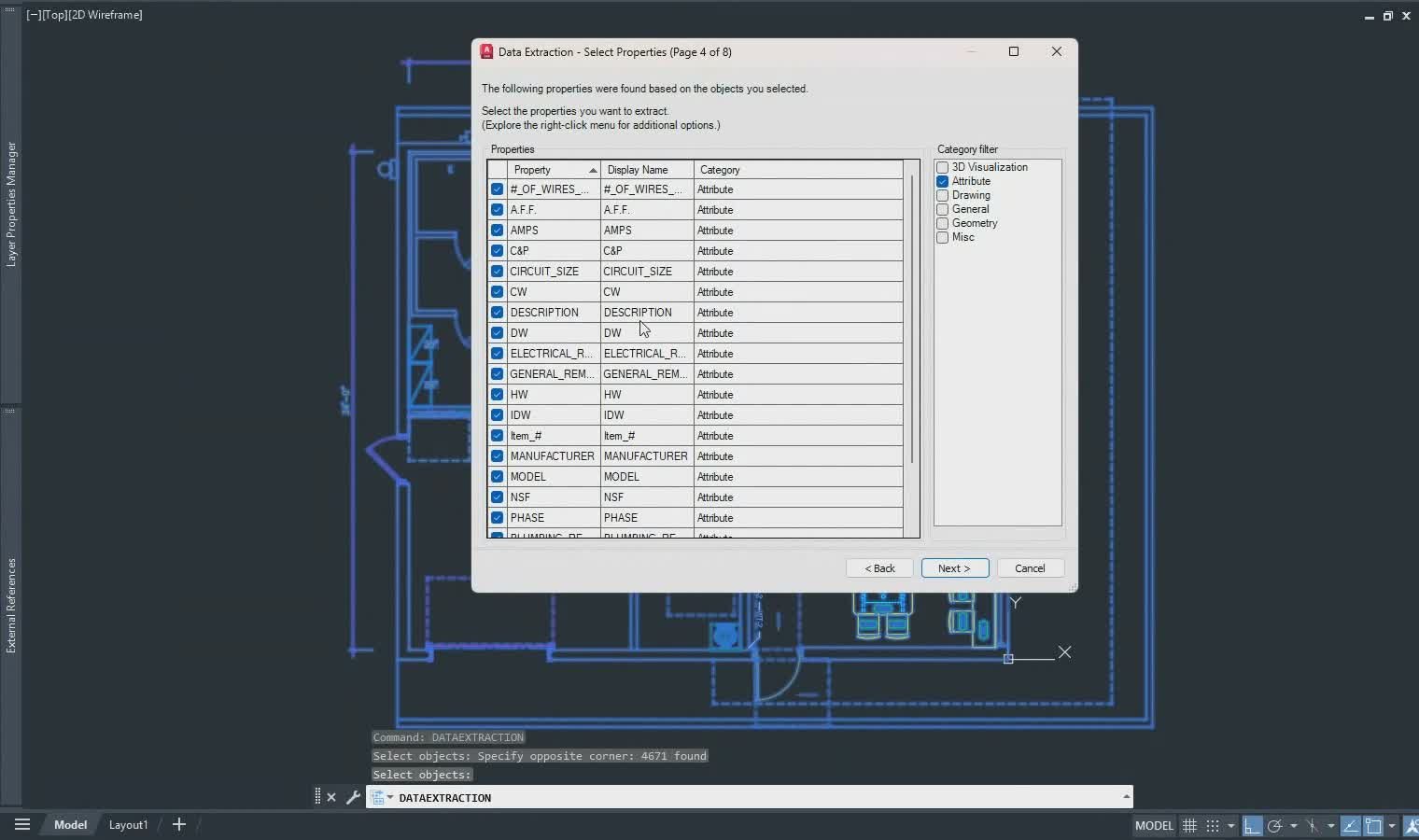
For years, this schedule was built by hand. Someone copied data into Excel, or ran the AutoCAD Data Extraction wizard through eight pages of settings. Then they fixed the column widths again. And again on the next project.
It was slow, and one missed item meant a wrong schedule on the drawings.
What I built
A client came to me for a consultation with this exact problem. Each piece of equipment in their floor plan already carried its own data in a tag, so the schedule should be able to read it.
I built them a custom tool. They select the equipment in the floor plan, and the tool reads the tags and builds the finished schedule. The table, columns, and widths are set up once, so every project comes out the same.
The result
- The schedule is built from the drawing, so nothing is retyped.
- Columns and widths are set once, so they are right every time.
- If the plan changes, you run it again instead of rebuilding the table.
The same idea works for door, finish, lighting, and power schedules.
Have a schedule that eats your week?
Book a call. Tell me what you draw by hand today, and I will tell you if we can automate it.
Not ready for a consultation?
You can still get a similar tool. My LazyCAD plugin has a schedules tool. You save a table template once, select your blocks, and it builds the schedule for you. It is included with the Patreon membership.